
1 min read

The application will enable authorized Biometric Administrators to Add users, Remove Users, Enable users to add their application credentials and link their Biometric Identities to their system profile with a simple biometric match. Users Must be pre-enrolled in the EyeLock EIS system to link their LXT45 matchable user identity to their application profile.
To Match or Not to Match, that is the Question!
Let’s Get Started by running the app and setting up your connection settings.
- Run the Integral Biometrics User Management App. On startup, it should look like this:
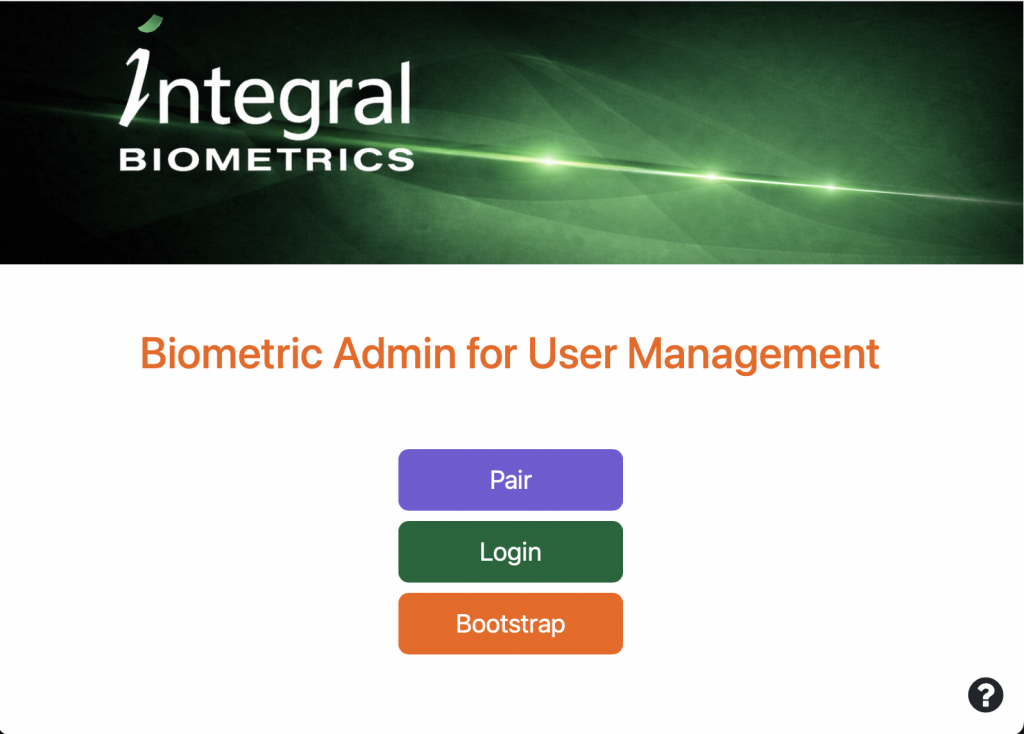
2. Click on the Question Mark Icon to open the settings page.
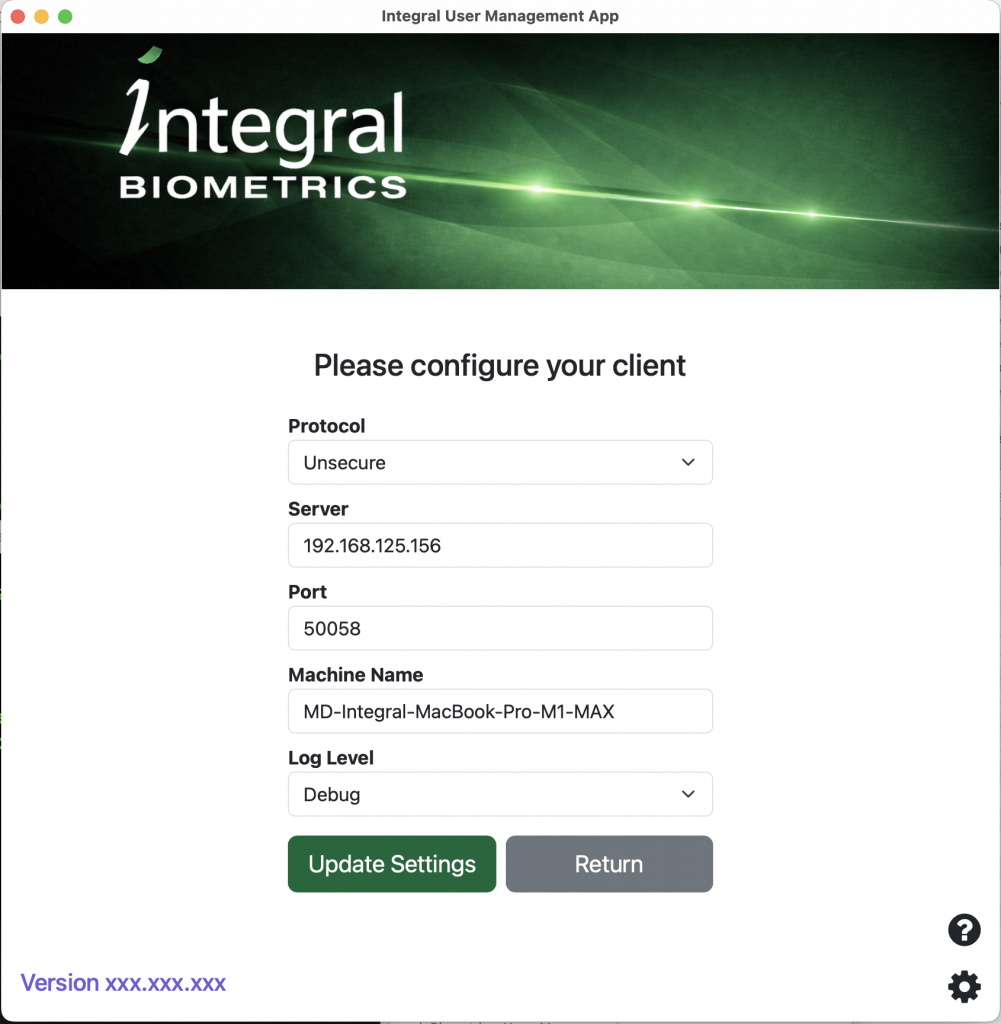
3. Make sure the Server Address is correct for your system. This can be an IP or a machine name.
4. The port will typically be 50058 but in some systems can be 50051. This is the port for your Quicksilver App server.
5. Now enter your Client machine name in the Machine Name field and select a Logging level.
Debug is fine to start with unless you are testing. Then set it to Trace. If you are a user, you can set it to Warn.
6. Click on Update Settings to save any changes. If no changes were required, click on Return.


Leave a Reply